Fix my photo prompt

Remove People or Objects From the Background

Upload your photo to ChatGPT or Gemini and paste this prompt. You can change the target below before you copy.

Remove People or Objects From the Background

ChatGPT · Gemini
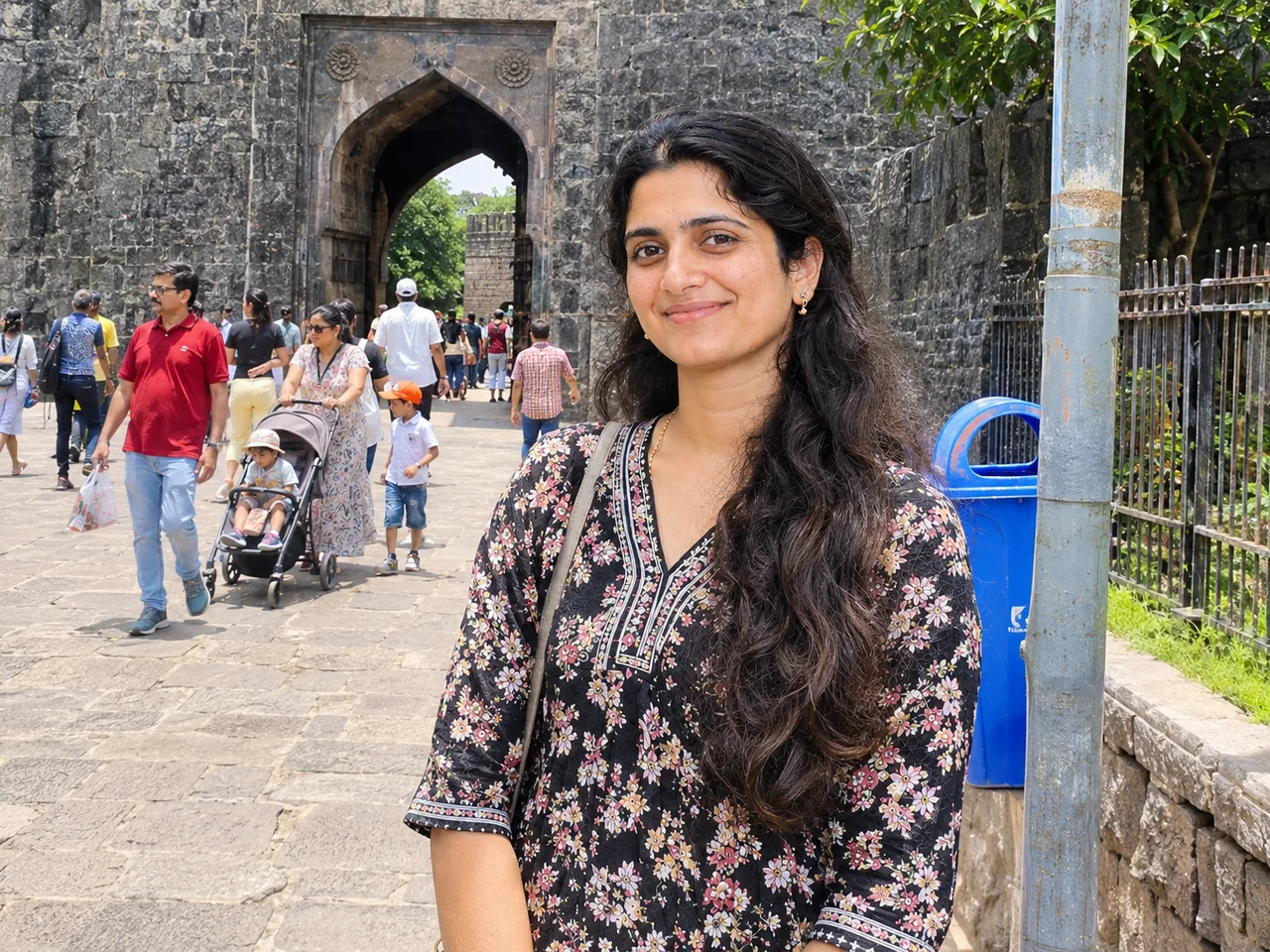
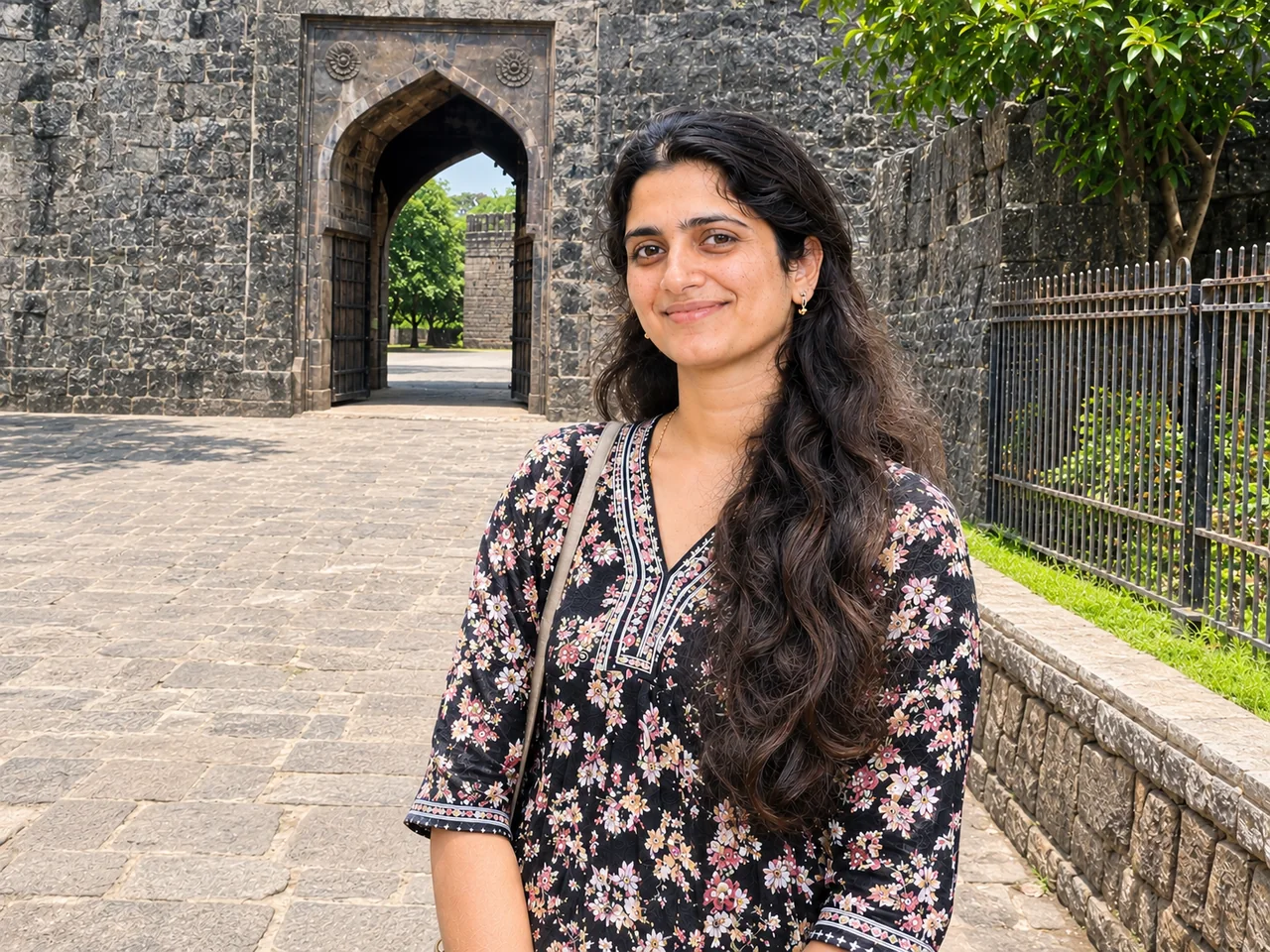
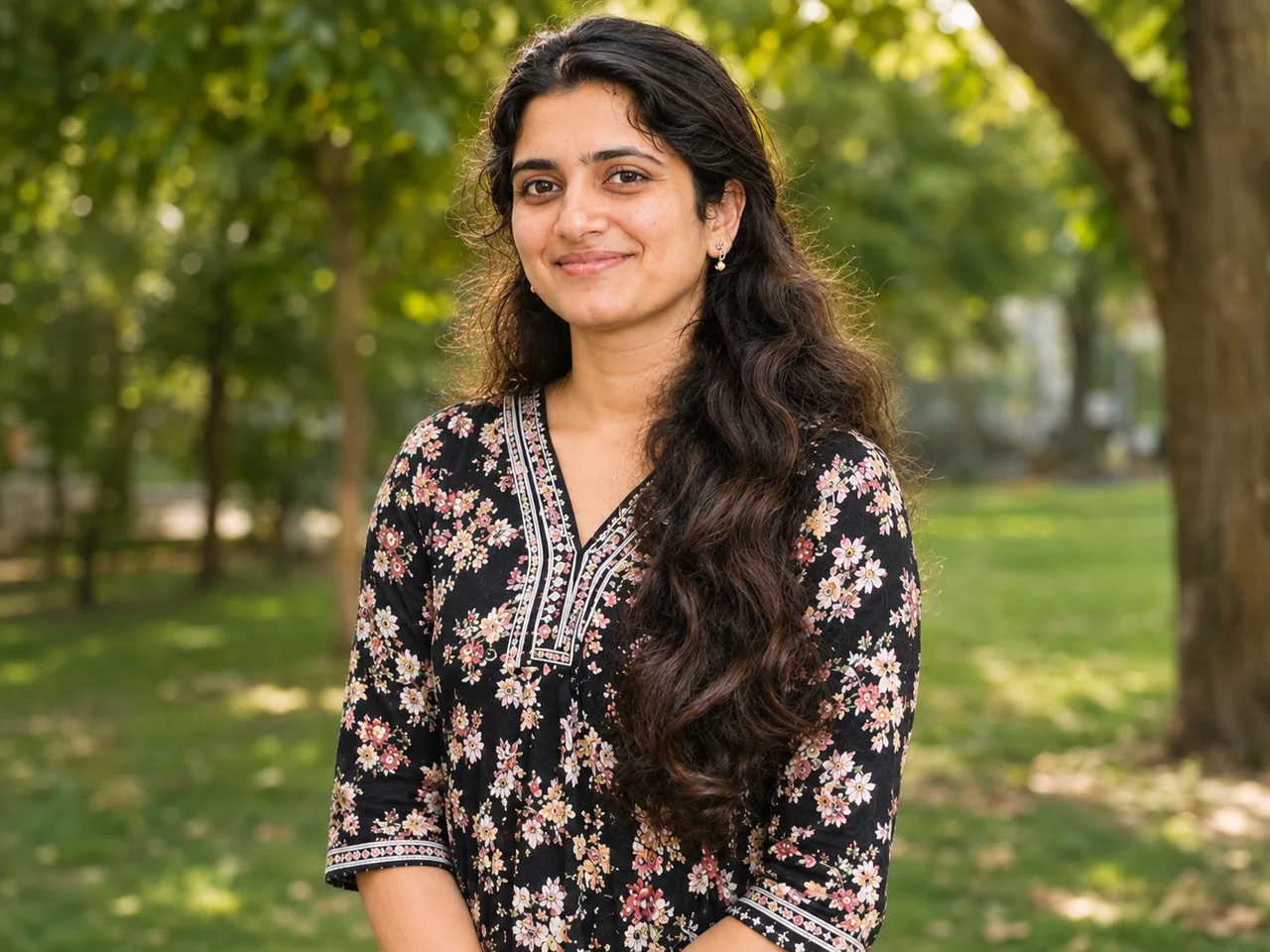
Remove People or Objects From the Background – original photoRemove People or Objects From the Background – result from ChatGPTBeforeAfter · ChatGPT

IDENTITY LOCK: Edit the uploaded photo; do not generate a new one. Keep every person's face, expression, pose, age and identity exactly as in the original. Do not redraw, regenerate, beautify or re-light any face beyond what the edit below needs. Keep the original framing and aspect ratio unless the edit says otherwise. THE EDIT: Remove all the strangers in the background from this photo and fill the space naturally with matching background. Keep the main person, their shadow, the lighting and everything else exactly as it is. The result should show no blur patches, repeated patterns or signs of editing. CAMERA AND LIGHT: Keep the original camera angle, perspective and composition. Any new or repaired area must match the original light direction, colour temperature, grain and sharpness, so the edit cannot be spotted. FINISH: Natural, believable result at the highest resolution available. Real skin texture and fine detail preserved, clean edges around hair and clothing, no halos, no banding, no over-sharpening or over-smoothing. AVOID: changed faces or expressions, invented facial details, plastic skin, altered body shape, cropped-off heads or limbs, colour casts, halos around edges, added objects, added text or watermarks.

What this prompt changes, and what it keeps

The first block is the identity lock: it tells the AI to treat your uploaded photo as the only reference for who is in the picture. The next block describes the new scene, clothing and light.

Which photo to upload

  • Upload the original file, not a screenshot or a forwarded copy.
  • For old prints, photograph or scan them flat with no glare.
  • Tell the AI anything it cannot know, such as the real colour of an outfit.

If the result goes wrong

The AI redrew a face

Add: "Do not regenerate faces. Only clean, sharpen and repair what is already there."

The photo was cropped or reframed

Add: "Keep the original framing and aspect ratio."

Colours look unnatural

Add: "Natural, realistic colours with neutral white balance."

How to use a prompt

  1. Pick your options and tap Copy prompt.
  2. Open ChatGPT or Gemini and upload a clear, front-facing photo.
  3. Paste the prompt and send. Run it again if the first result is off.

More fix my photo prompts

Restore an Old Damaged Photo – example resultFix my photo

Restore an Old Damaged Photo

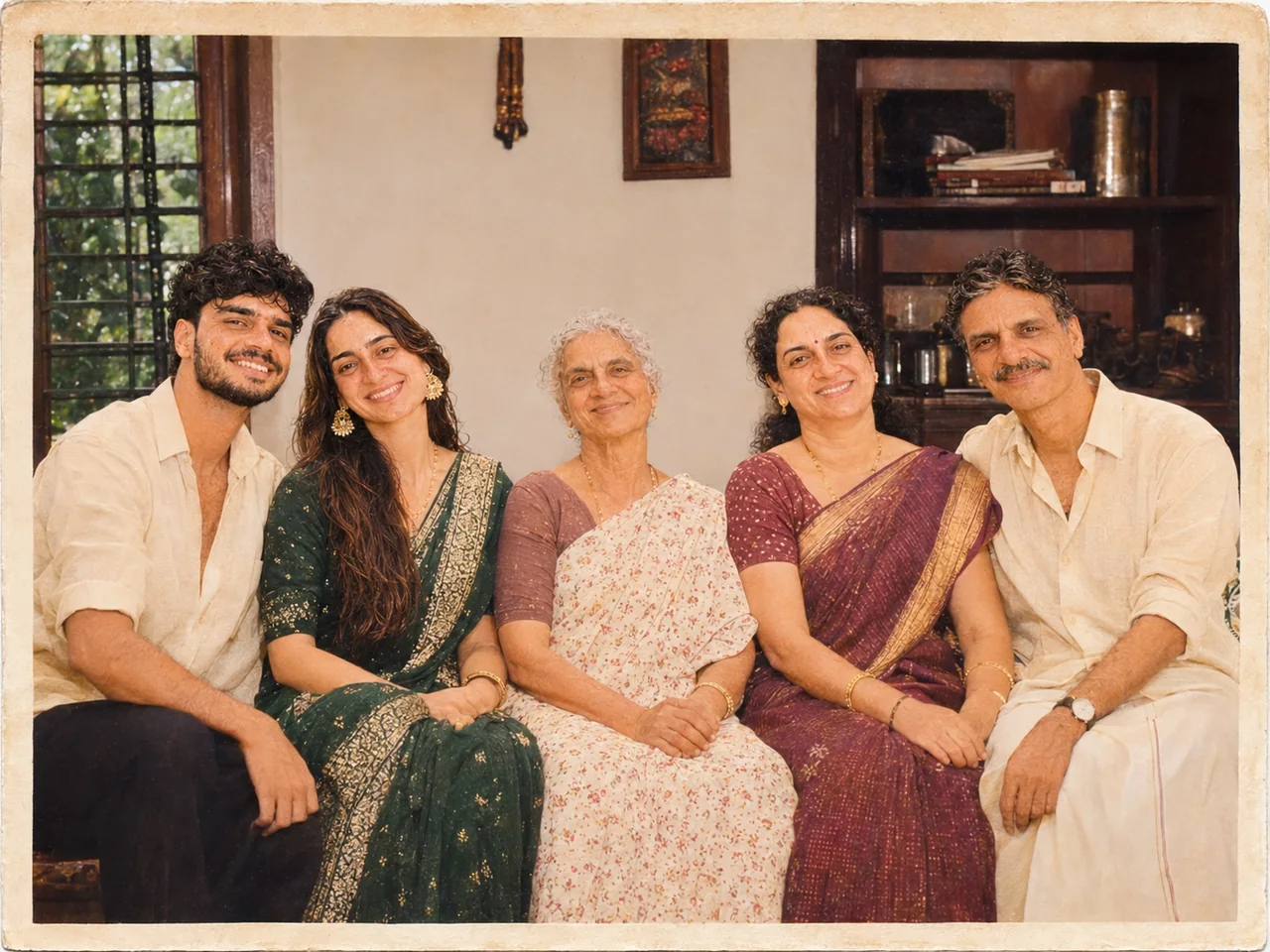
Restore this old photograph. Remove scratches, dust, stains, fold lines and tears. Correct fading and bring back natural contrast. Keep it black and white. Sharpen gently without making skin look plastic. Keep the original clothing, background, pose and framing.
Sharpen a Blurry or Low-Quality Photo – example resultFix my photo

Sharpen a Blurry or Low-Quality Photo

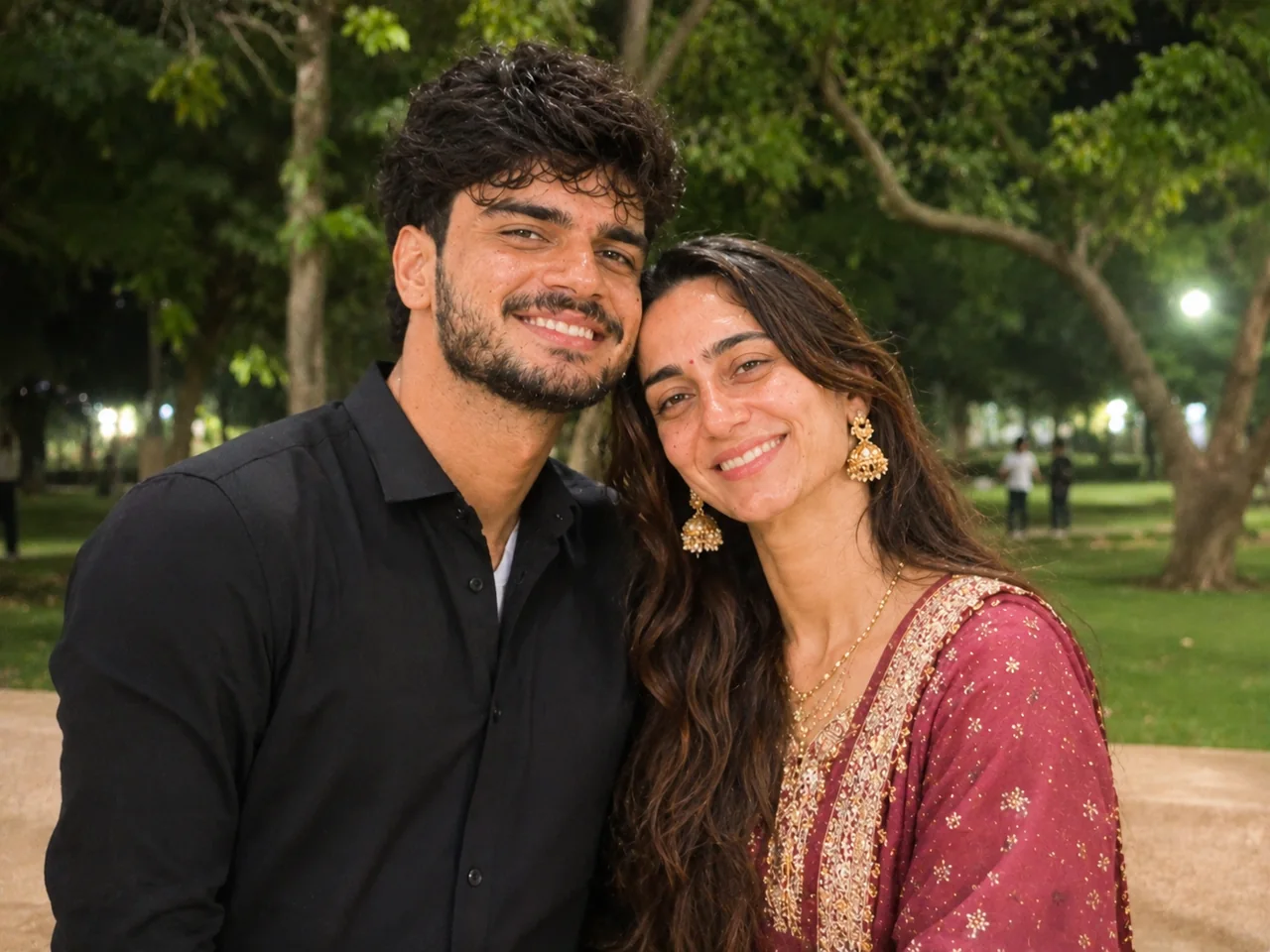
Improve the quality of this photo. Reduce blur and noise, recover detail in hair, eyes and fabric, and correct the exposure and white balance so skin tones look natural. Do not change the composition, background, clothing or expression. The result should look like the same photo taken with a better camera.

Change the Background Naturally – example resultFix my photo

Change the Background Naturally

Replace only the background of this photo with a beach at sunset. Keep the people, their pose, clothing and hair edges exactly the same. Match the direction, colour and softness of the light on the people to the new background, and add natural shadows so it does not look cut out.

See all prompts to fix and improve a photo ›